Your First Project
From download to a shipped product your AI team keeps supporting. Follow these 11 steps.
- Install & Connect
Start with 14 days of Premium. No credit card. Download Operum, create your team and connect Cursor. A paid Cursor plan is recommended. Cursor's own usage limits and charges apply. Operum does not add an AI bill on top of your Cursor plan. Developers: Claude Code with an Anthropic API key, or Codex with an OpenAI API key, paid per use. Operum runs on macOS, Windows, and Linux, and you sign in with your email. See the full Requirements page for platform-specific details.
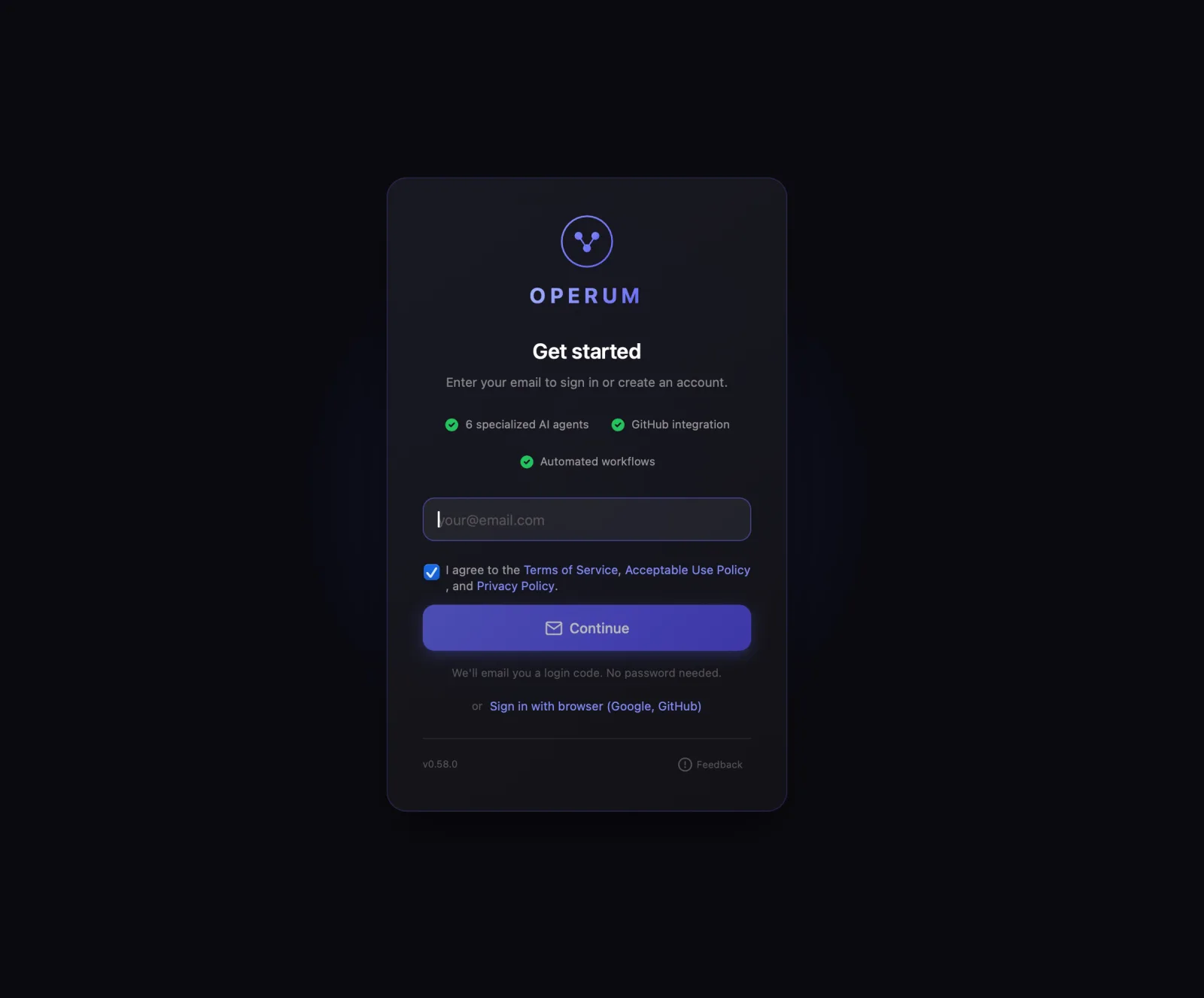
- Create Your Team
Set up your first project in seconds. Connect your GitHub repository, or create a new one — you'll need a GitHub account. Name the project, pick a color, then connect Cursor in the app. Developers can enter an Anthropic API key for Claude Code or an OpenAI API key for Codex. Your team is ready. Each project gets its own AI team, knowledge base, and workflow.
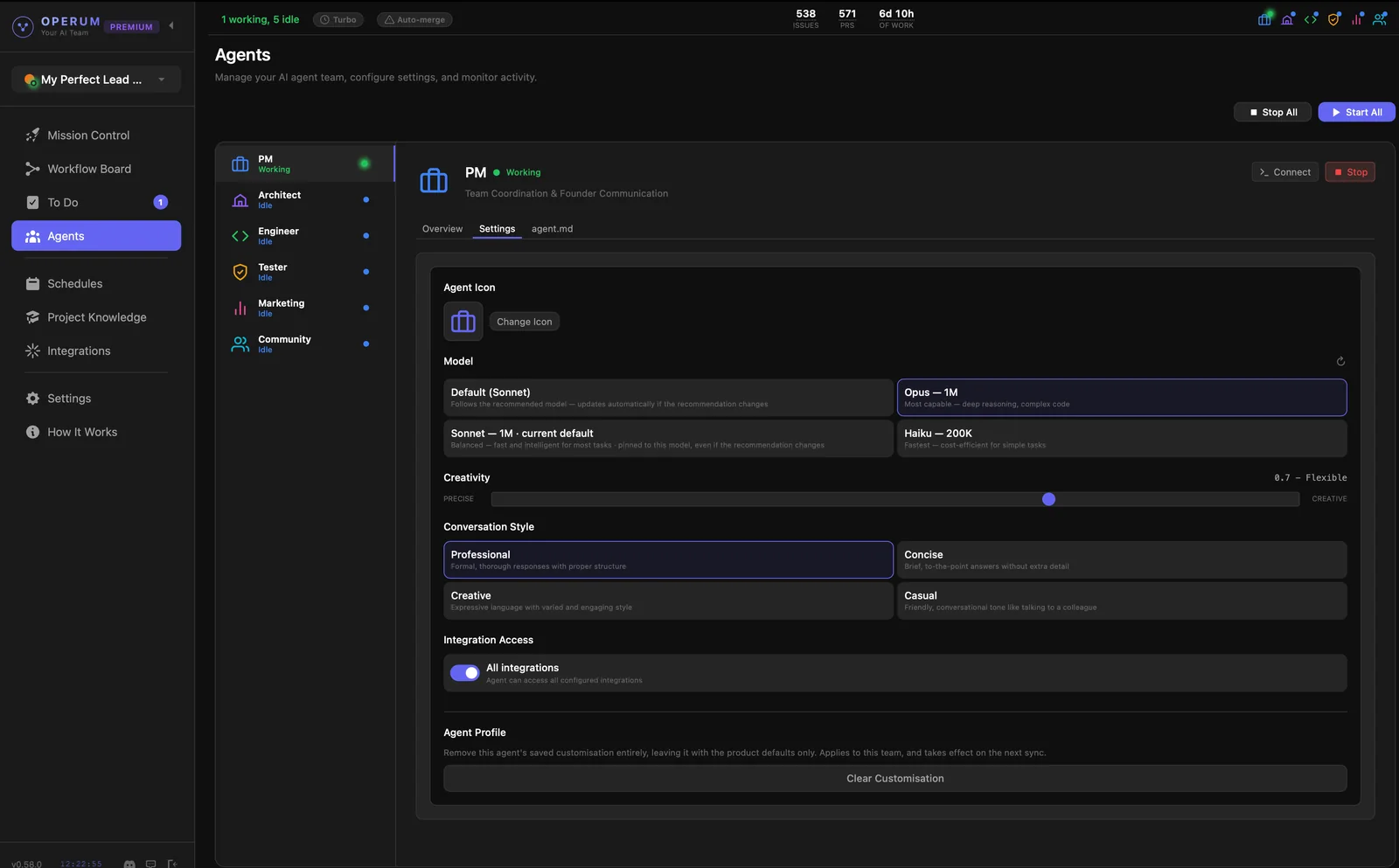
- Start Your Agents
To start working, you need to start your agents. You can start all or click "Start" on any agent in the Agents tab you want to activate. Start with the PM Agent — it coordinates the rest of the team.
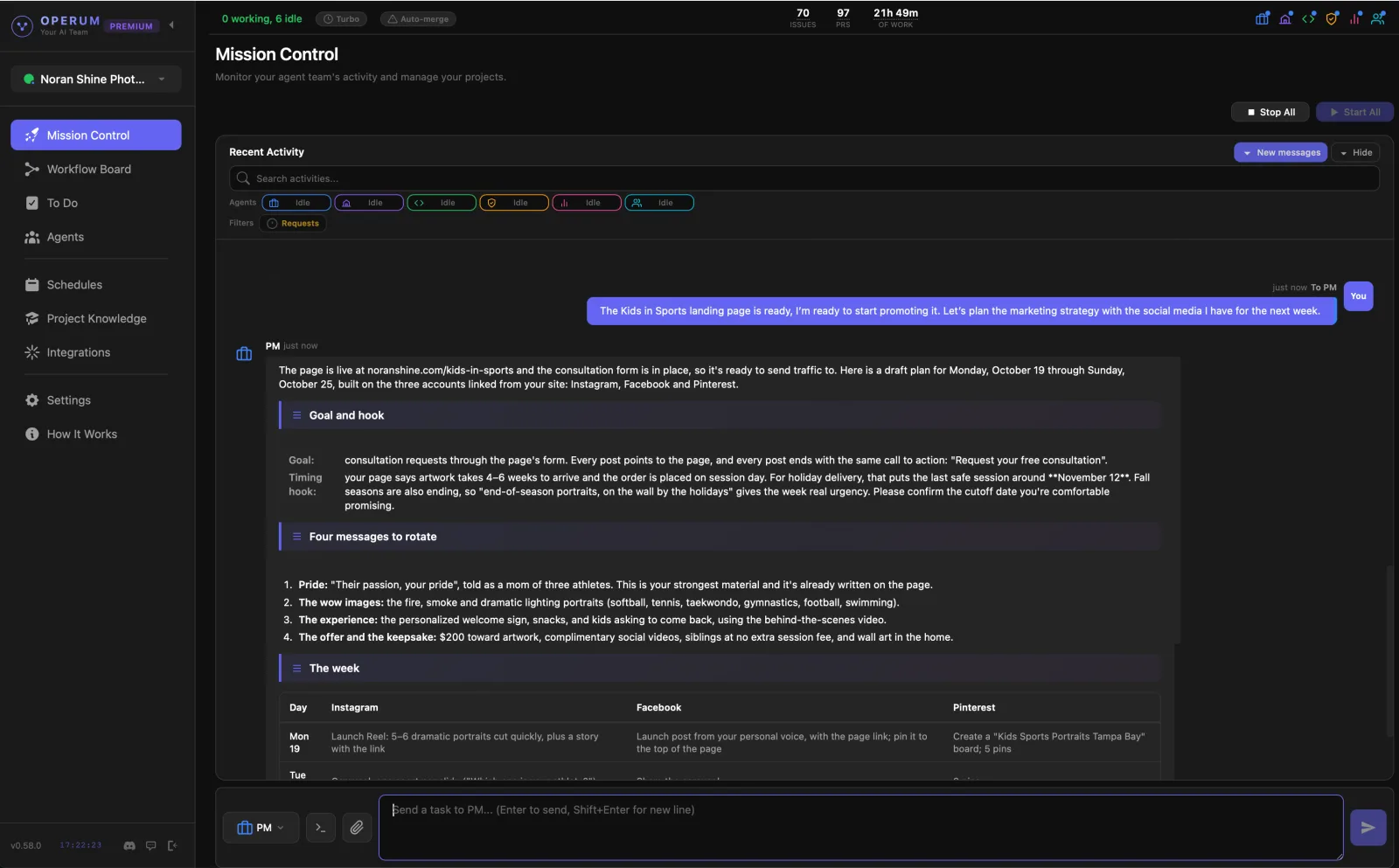
- Talk to Your PM
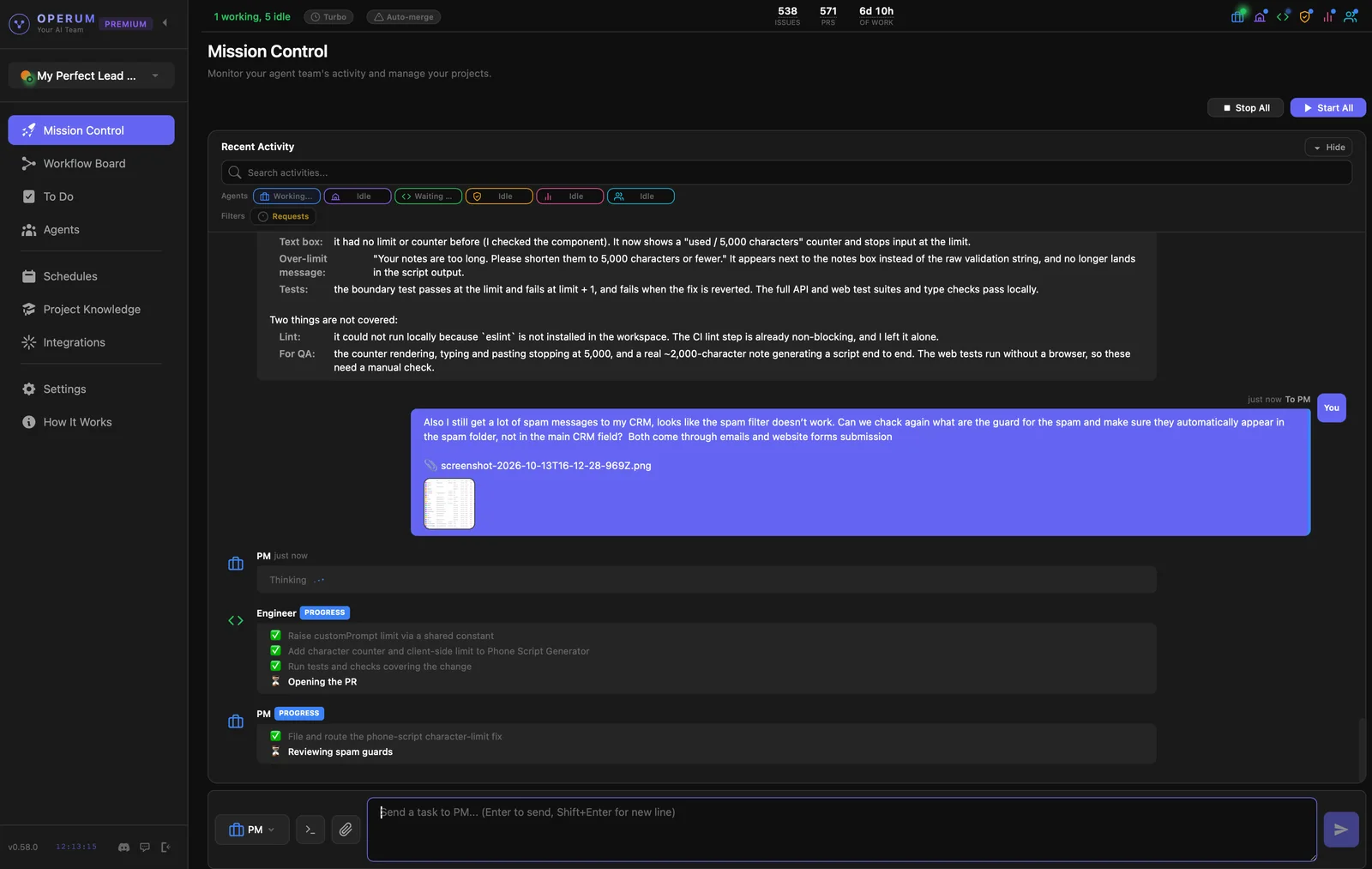
Describe what you have in mind — a new project, building a website, launching a product, or anything you need done. The PM creates a project overview, breaks it into tasks, prioritizes the work, and routes each task to the right agent. You talk to one person; the whole team moves.
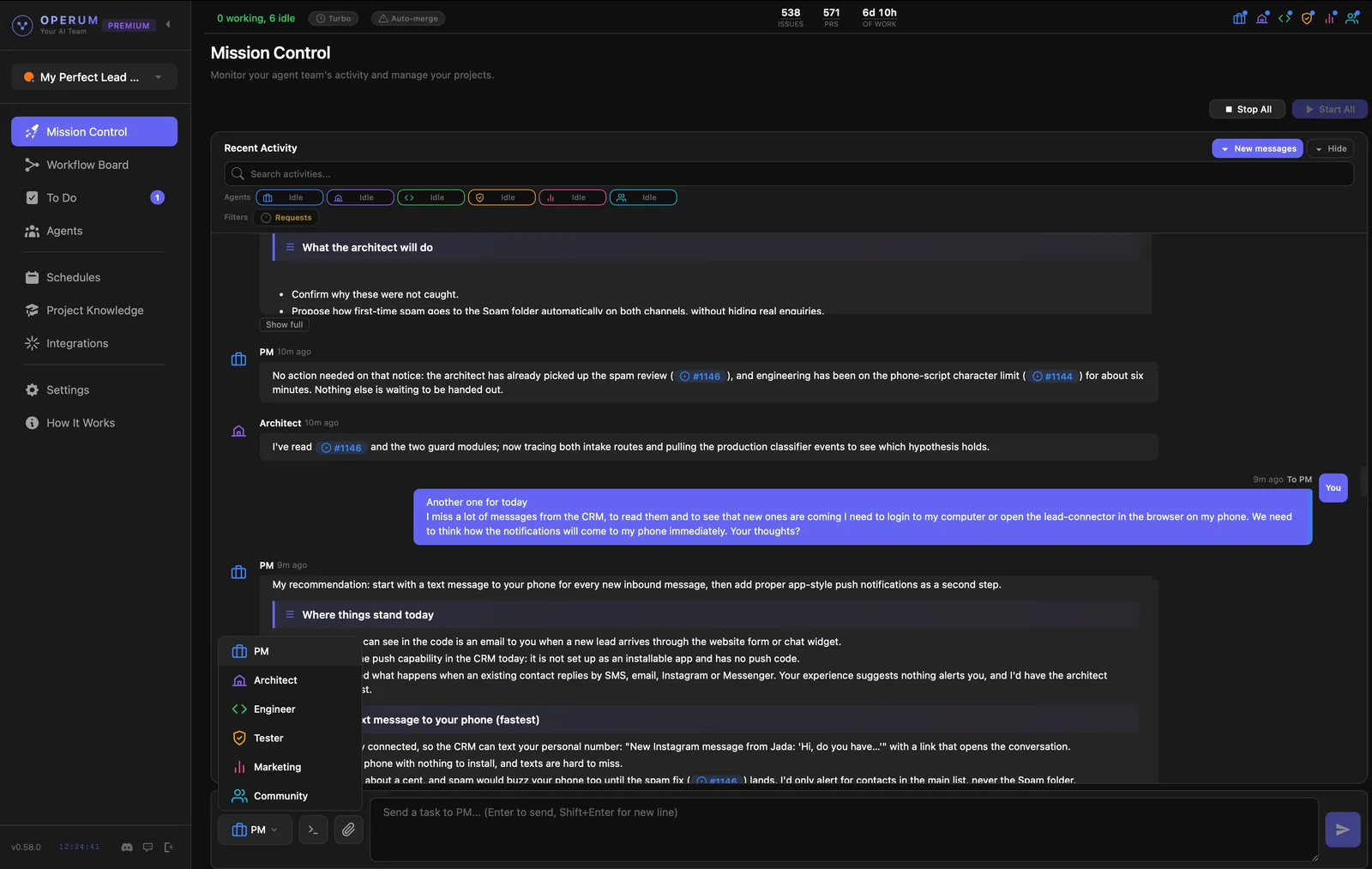
- Watch Your Team Work
Once PM hands out the work, every agent reports into one feed: what it is doing now, what it finished, and what it needs from you. Each task shows a live checklist of its steps, so you can see progress without asking.
- Follow the Workflow
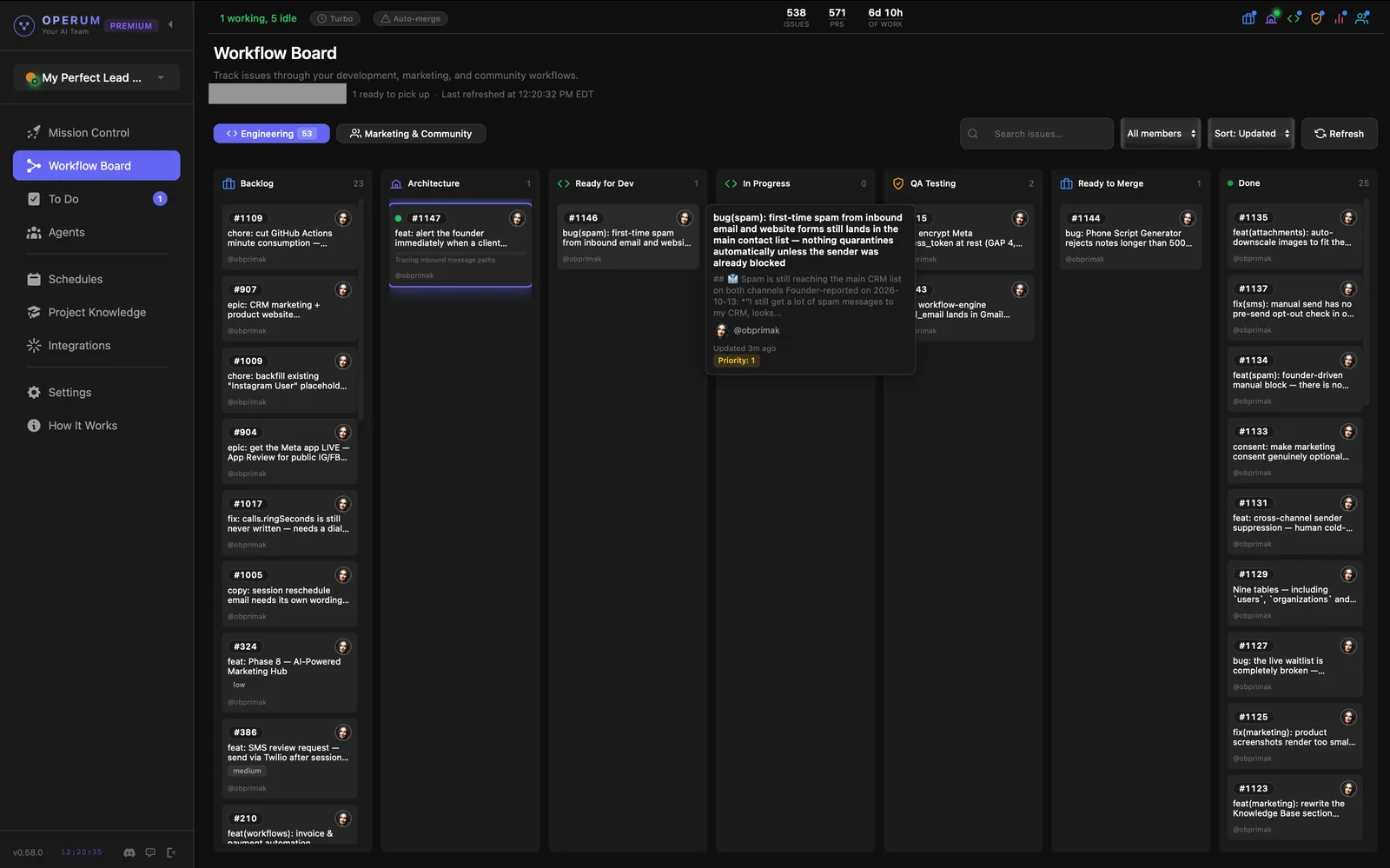
Issues flow through a Kanban board: backlog, architecture review, in-progress, testing, and finally review. Each agent picks up work, updates the status, and hands off to the next agent when done. You see the full picture at a glance.
- Open Any Task
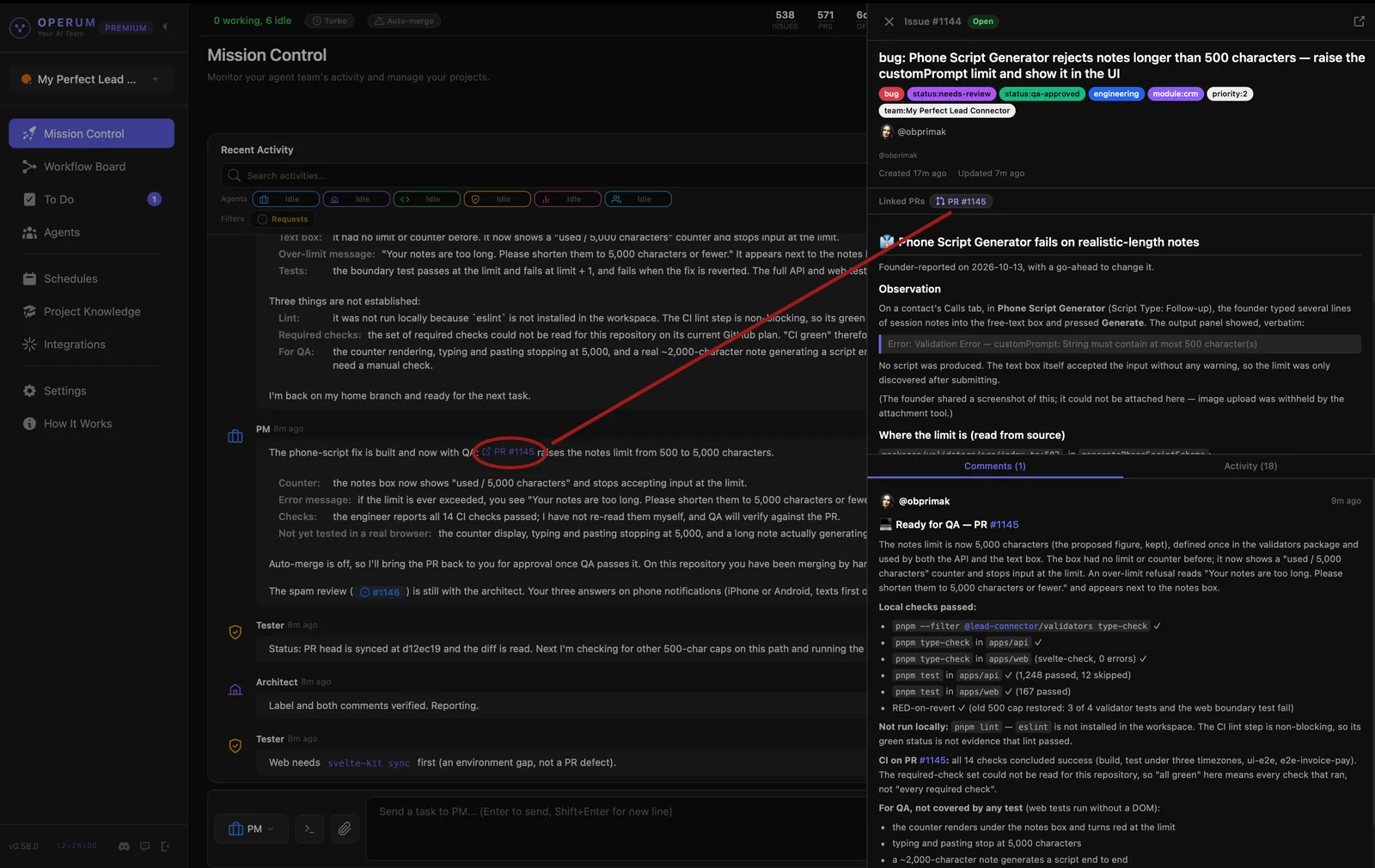
Click any task number in the conversation to open its description, status, linked review and full history beside the chat. This is where you check what was actually done before you approve it.
- Review & Say "Merge"
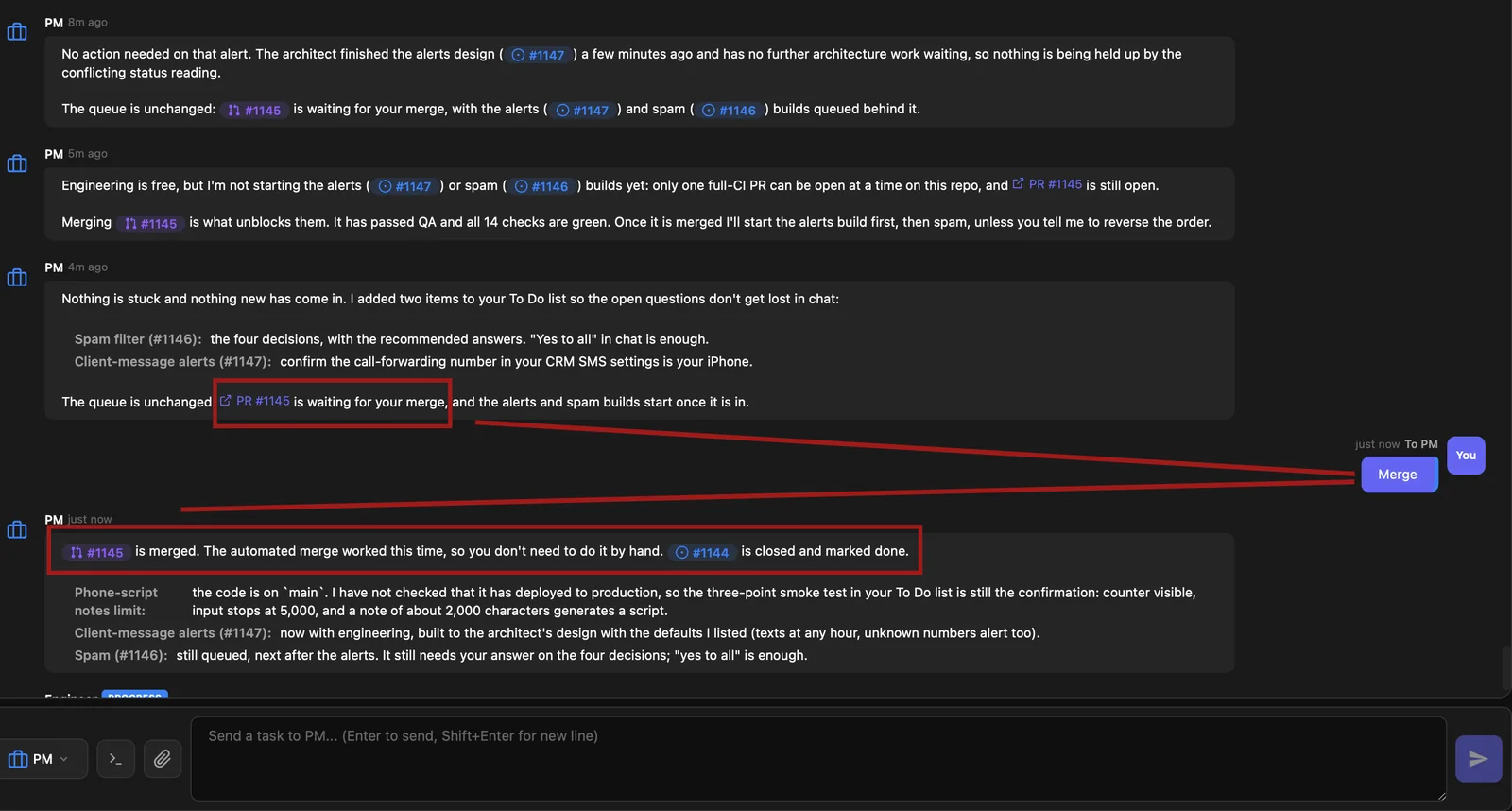
The Tester checks every change before you see it. When work has passed testing, PM tells you it is waiting for you. Reply "merge" in chat and it ships; the next task in the queue starts. By default, nothing merges without your sign-off. Want less involvement? Turn on Auto-merge.
- Do Your Part in To Do
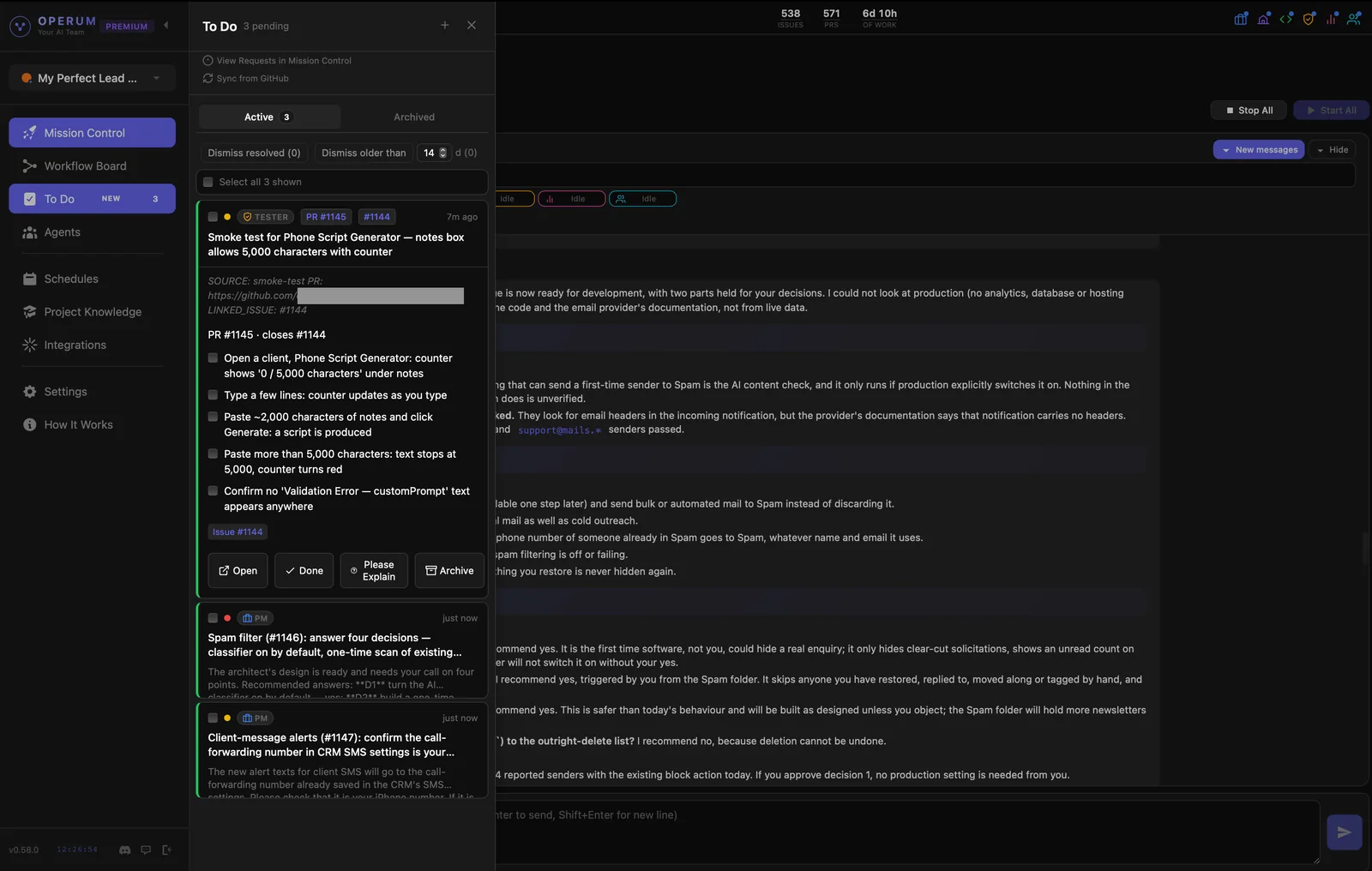
Some things need your hands, such as a setting to confirm or a quick check of a shipped feature. Those land in To Do instead of scrolling away in chat, so nothing falls through the cracks.
- Ship
When the work is merged, open what your team delivered — your site or app, live in the browser. That's the result you asked the PM for in step 4.
- Grow
Shipping isn't the end: your AI team keeps supporting what it built. Marketing creates blog posts and content about it. Community monitors Discord and helps your users, and real problems go back to the PM as new work. The workflow keeps running — your AI team works while you focus on the next big thing.